Template Builder
Create custom DPIA questionnaire templates with sections, questions, and risk scoring.
Your Templates Library
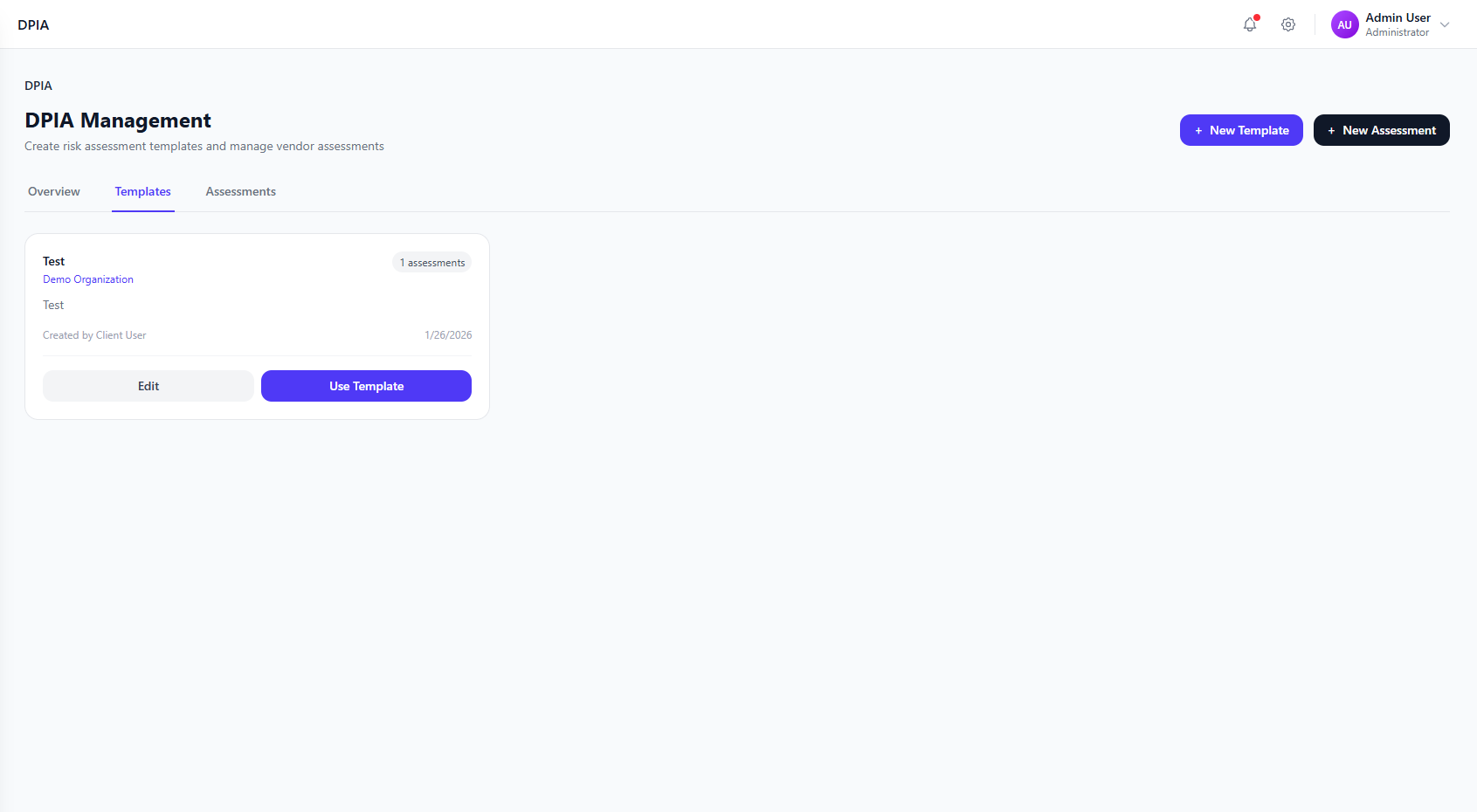
The Templates tab shows all your DPIA questionnaire templates. Each template can be reused for multiple assessments.
DPIA Templates library showing template cards with Edit and Use Template actions
Screenshot placeholder
Creating a New Template
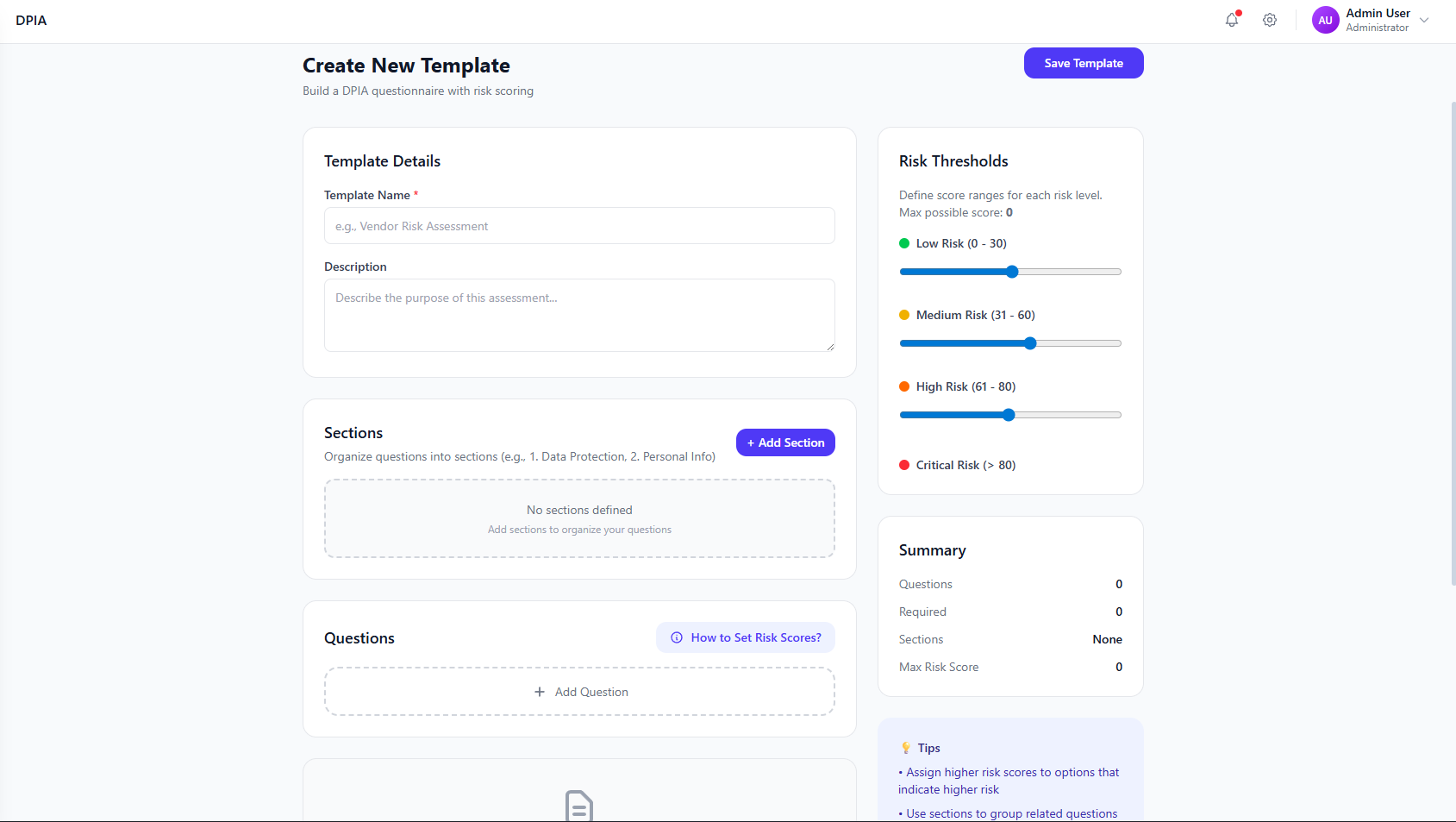
Click "+ New Template" to open the template builder interface.
Create New Template form with Template Details, Sections, Questions, and Risk Thresholds
Screenshot placeholder
Step-by-Step Guide
Enter Template Details
Provide a Template Name (e.g., "Vendor Risk Assessment") and a Descriptionexplaining the template's purpose.
Configure Risk Thresholds
Set the score ranges for each risk level on the right panel:
Add Sections
Click "+ Add Section" to organize questions into logical groups (e.g., "Data Protection", "Personal Info", "Security Measures").
Add Questions
Click "+ Add Question" to add assessment questions. Each question can have a risk score assigned.
Save Template
Click "Save Template" to save your template for future use.
Template Components
Template Details
- Name
- Description
- Organization
Sections
- Group related questions
- Organize by topic
- Multiple sections per template
Questions
- Various question types
- Risk scores per answer
- Required/optional
Risk Thresholds
- Configurable ranges
- 4 risk levels
- Automatic scoring
Template Summary Panel
The right sidebar shows a real-time summary of your template:
Questions
Total question count
Required
Mandatory questions
Sections
Section count
Max Risk Score
Maximum possible score